
Use AI Features for Free with Tabhive LTD and OpenRouter
Connect OpenRouter to Tabhive LTD, choose a free model, and use AI search, group name suggestions, and Smart Tab Save.
 Sailaja
Tabhive has AI features that help you save, search, and organize tabs faster. You can use AI search, get group name suggestions, and save tabs to the right place with Smart Tab Save.
If you are on the Tabhive Lifetime Deal, you can use these AI features with your own API key. One simple way to keep the cost low is to connect OpenRouter and choose a free model.
What You Can Do with Tabhive AI
Here are a few useful ways to use AI in Tabhive:
- AI search: Ask questions and find the tabs, groups, spaces, and snippets you need faster.
- Group name suggestions: Let AI suggest a clean group name when you create a group from open tabs.
- Smart Tab Save: Save the current tab without manually choosing the space and group.
- Better organization: Let AI match tabs to related groups so similar tabs stay together.
Why This Is Useful for LTD Users
Tabhive LTD is a one-time purchase. You pay once for lifetime access and get unlimited AI searches when you use your own API key. That means Tabhive does not limit how often you use AI inside the app.
OpenRouter gives you a place to choose the AI model. Some models on OpenRouter are free. When a free model is enough for your task, you can use Tabhive AI features without paying for every AI request.
LTD highlight: Tabhive gives you the AI features. OpenRouter lets you choose the model. Free models help you use AI without worrying about every request.
The Free Model Used in This Guide
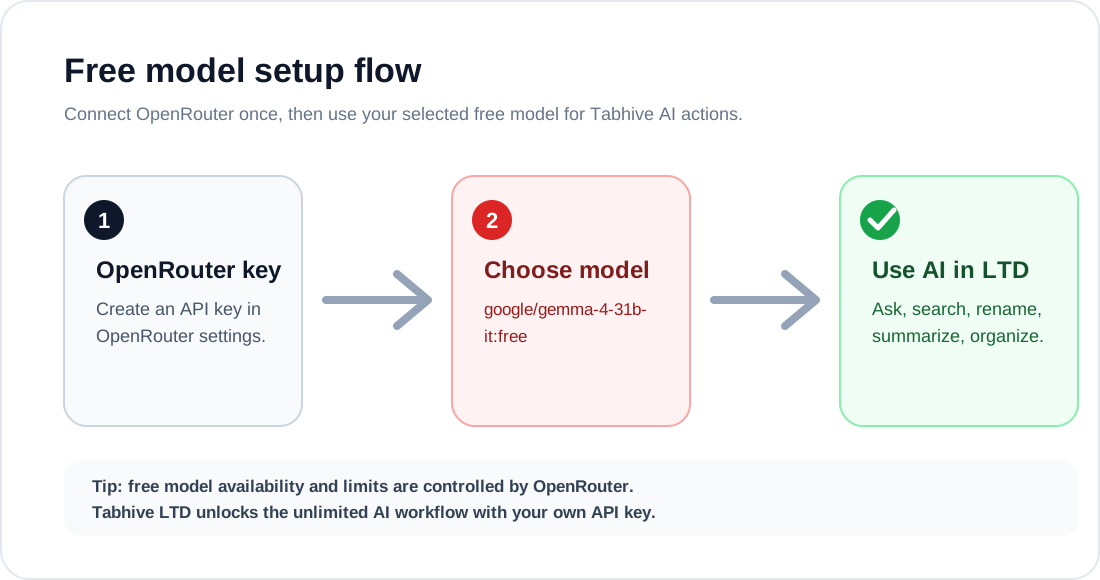
OpenRouter has many models. For this guide, we will use Google: Gemma 4 31B (free).
When Tabhive asks for the model name, paste this:
google/gemma-4-31b-it:freeOpenRouter lists it as a free Gemma model from Google. It is a good first model to try for everyday Tabhive AI tasks.
How to Set It Up
1. Create an OpenRouter API key
Open your OpenRouter account and create an API key. Keep the key private. You will paste it into Tabhive once.
Your API key is encrypted at rest and stored securely in Tabhive, so you do not need to paste it again every time you use AI.
2. Open Tabhive AI settings
In Tabhive, go to your AI settings and choose OpenRouter as the provider.
3. Paste the free model name
Paste this model name:
google/gemma-4-31b-it:freeThen save your OpenRouter API key and model choice.
4. Use Tabhive AI normally
After that, use Tabhive AI like normal. Search your saved tabs, get group name suggestions, and use Smart Tab Save.
Watch the OpenRouter Setup
This video shows how to add your OpenRouter API key in Tabhive and choose the free model.
When a Free Model Is Enough
- Daily searches: Finding saved tabs, groups, spaces, and snippets.
- Group naming: Getting quick names for new tab groups.
- Smart saving: Saving a tab to the best space and group with less manual work.
- Trying AI: Testing how AI fits into your tab workflow.
For heavier work, you can always switch to another OpenRouter model later. Your Tabhive LTD setup stays the same.
A Few Things to Know
Free models are controlled by OpenRouter and its providers. The free model list, speed, limits, and availability can change over time.
If google/gemma-4-31b-it:free is busy or unavailable, choose another OpenRouter model that works with Tabhive.
Conclusion
Tabhive LTD and OpenRouter are a good fit if you want AI features without a monthly Tabhive subscription. You pay once for Tabhive LTD, add your OpenRouter key, and start with a free model like google/gemma-4-31b-it:free.
Ready to try it? Open Tabhive AI settings, add your OpenRouter key, and use AI search, group name suggestions, and Smart Tab Save without adding extra model costs for everyday tasks.